In one of my last projects I ran into an interesting question regarding the taxonomy store. Will it be possible to get all taxonomy data by using pure JavaScript?
SharePoint has a great JavaScript object model for different purposes but how deep is this integration when an access to service applications like the Managed Metadata Service is required. The simple answer on this is: Not enough. Due the strict project plan we decided to use a Silverlight web part, which is capable to access the taxonomy store. This solution worked well but I wasn’t pleased by that.
Time passed by and the question left unanswered to me. At the SharePoint Conference I meet Mark D. Anderson the founder of SPServices. He told me that this Jquery library should be capable of accessing the Taxonomy Client Web Service. This was the last missing information that I needed to access the Taxonomy Store and this is my solution.
The challenges
Basically there are three gaps to take to get information from the taxonomy store.
- Get all required data to access Taxonomy Service
- Access the TaxonomyClientService using JavaScript
- Handle the XML result from the web service
These goals sound simple but when it comes to JavaScript and the Taxonomy Store a lot of creativity is needed to get this done. At the end I’m really pleased with my solution. The following explanations will use a simple Metadata Field called ‘Color’.
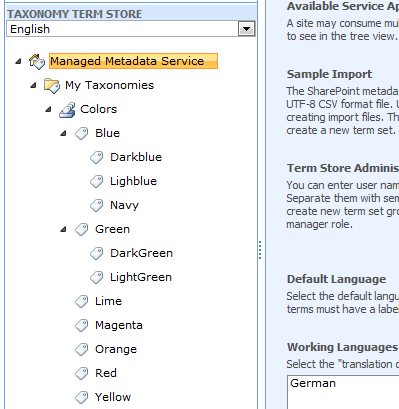
Taxonomy in Term Store Management
Get all data to access Taxonomy Service
In SharePoint 2010 Managed Metadata information will always be used in columns and the configuration to the managed metadata service is directly stored in the field configuration. By accessing those site collections columns all required information can be retrieved with a dynamic and flexible approach. The following code access a field named “Color” in my site collection and returns the xml schema of the field.
[code lang=”javascript”]
var fieldCollection;
var colorField = null;
var texconfig = null;
// Delay Script Execution until sp.js is fully loaded
ExecuteOrDelayUntilScriptLoaded(getColor, "sp.js");
function getColor() {
// Load the client context
var clientContext = SP.ClientContext.get_current();
if (clientContext != undefined && clientContext != null) {
// Load the root web.
var webSite = clientContext.get_site().get_rootWeb();;
// Select ‘Color’ Field from the root web site colins
fieldCollection = webSite.get_fields();
this.colorField = fieldCollection.getByInternalNameOrTitle("Color");
// Load the field or throw error
clientContext.load(this.fieldCollection);
clientContext.load(this.colorField);
clientContext.executeQueryAsync(
Function.createDelegate(this, this.OnLoadSuccess),
Function.createDelegate(this, this.OnLoadFailed)
);
}
}
function OnLoadSuccess(sender, args) {
var fieldInfo = ”;
// Get Schema XML from the field
var fieldschema = colorField.get_schemaXml();
// Parse it with the Taxonomy Configuration Object
texconfig = TaxConfiguration;
texconfig.Configuration = fieldschema;
texconfig.ParseConfiguration();
// Do something with the field information
}
function OnLoadFailed(sender, args) {
alert(‘Request failed. ‘ + args.get_message() + ‘\n’ + args.get_stackTrace());
}[/code]
For parsing this xml schema of the field I created a simple helper class that query for all required properties to access the taxonomy store. The XML parsing is pretty much straight forward and that’s how the code looks like:
[code lang=”javascript”]var TaxConfiguration = {
SspId: "",
GroupId: "",
TermSetId: "",
Configuration: "",
ParseConfiguration: function () {
xmlDoc = $.parseXML(this.Configuration);
xml = $(xmlDoc);
var properties = xml.find("Property");
for (i = 0; i < properties.length; i++) {
propertyName = properties[i].firstChild.textContent == undefined ?
properties[i].firstChild.text : properties[i].firstChild.textContent;
propertyValue = properties[i].lastChild.textContent == undefined ?
properties[i].lastChild.text : properties[i].lastChild.textContent;
if (propertyName == propertyValue) {
propertyValue = "";
}
switch (propertyName) {
case "SspId":
this.SspId = propertyValue;
break;
case "GroupId":
this.GroupId = propertyValue;
break;
case "TermSetId":
this.TermSetId = propertyValue;
break;
}
}
}
}[/code]
Somehow the xml parsing in IE and chrome is different; therefore I need to check if ‘textContent’ or simply ‘text’ exists in my jquery object. After this gap was taken everything was ready to access the taxonomy service application.
Access the TaxonomyClientService using JavaScript
As mentioned before SPServices is powerful library to access the SharePoint Web Services using JavaScript and make use Jquery. There are ways to access asp.net web services by pure JavaScript but it’s a more comfortable way to do this.
To access all hierarchy levels of a terms stored two different web service calls needs to be made because there is no web service available that returns all the information at once. Those different methods that need to be called are:
- GetChildTermsInTermSet
Returns all first level terms in a specified term set - GetChildTermsInTerm
provides a way to access the levels below a specific term
The documentation of the result returned by the web service can be found in the MS-EMMWS: Microsoft Enterprise Managed Metadata Web Service Protocol Specification. It takes a while to figure out which property is used for what. The following xml attributes will be consumed by my script:
- a9
Guid of the term - a32
Name of the term - a25
Parent termID - a69
Term has child terms
After I figured out those xml attributes I was able to build my script and here is it:
[code lang=”javascript”]function GetTermsRecursive(sspId, termSetId) {
var terms = new Array();
var returnValue;
$().SPServices({
operation: "GetChildTermsInTermSet",
sspId: sspId,
termSetId: termSetId,
lcid: 1033,
completefunc: GetData
});
}
function GetChildTermsRecursive(sspId, termSetId, roottermId) {
var terms = new Array();
$().SPServices({
operation: "GetChildTermsInTerm",
sspId: sspId,
termId: roottermId,
termSetId: termSetId,
lcid: 1033,
completefunc: GetData
});
return terms;
}
function GetData(xData, Status) {
if (Status == "success") {
terms = new Array();
xmlData = xData;
// Fix for different XML parsing in IE and Chrome
termsContent = $.parseXML(xmlData.responseText).firstChild.textContent == undefined ?
$.parseXML(xmlData.responseText).text :
$.parseXML(xmlData.responseText).firstChild.textContent;
termsXML = $.parseXML(termsContent);
$termsXML = $(termsXML);
console.log($termsXML);
childTerms = $termsXML.find("T");
parentTermId = null;
filterOutput = "<ul>";
for (i = 0; i < childTerms.length; i++) {
termName = $(childTerms[i]).find("TL");
hasChildTermsXml = $(childTerms[i]).find("TM");
// request if child terms are available
hasChildTerms = $(hasChildTermsXml).attr("a69");
var tsTerm = new Object();
// Requesting actual term id
tsTerm.termId = $(childTerms[i]).attr("a9");
// Requesting term name
tsTerm.termName = termName.attr("a32");
// Setting Parent Term ID
parentTermId = $(hasChildTermsXml).attr("a25");
filterOutput += "<li id=’" + tsTerm.termId + "’>" + tsTerm.termName;
// If child terms are avaliable query child terms
if (hasChildTerms != undefined && hasChildTerms == "true") {
// Request child Terms
tsTerm.child = GetChildTermsRecursive(taxconfig.SspId, taxconfig.TermSetId, tsTerm.termId);
tsTerm.hasChildTerms = true;
} else {
tsTerm.child = null;
tsTerm.hasChildTerms = false;
}
filterOutput += "</li>";
terms[i] = tsTerm;
}
filterOutput += "</ul>";
// If parent element is specified query for parent element
if (parentTermId != undefined || parentTermId != null) {
$("#" + parentTermId).append(filterOutput);
} else {
currentFilter = $("#filter").html();
$("#filter").html(currentFilter + filterOutput);
}
return terms;
}
}[/code]
So that’s all needed to return and output the result in SharePoint. For displaying those terms I added a HTML Form web part to the page that contains a simple div element with the id called filter.
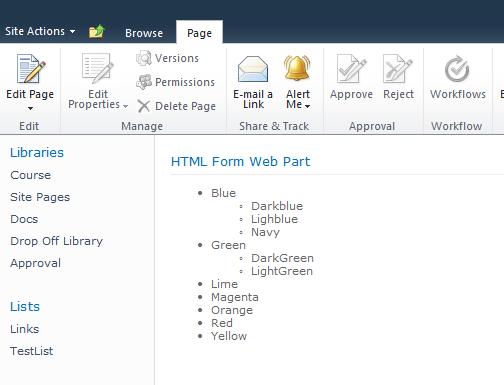
Output of JavaScript.from the Managed Meta Data Service
I decided to write a simple list to the defined div but it can be transformed to any other structure.
Conclusion
What looks like a complex problem at the beginning was easy to solve by using SPServices. In future projects now I’m able to use pure JavaScript to access Managed Metadata Service. The code for that is highly reusable too. I’m now able to access any site collection field based on managed metadata by using my TaxConfiguration object. It’s flexible and dynamic and hard coding of the required information to access the managed metadata service is not needed anymore. SPServices is also capable to boost productivity. In future if in need to decide to use Silverlight or JavaScript to access the Managed Metadata Service I will prefer to use JavaScript for a simple reason. Silverlight wasn’t made to write html to a web page. I think this is a misuse of Silverlight in this case.
If you like to download and play around yourself you can download the scripts packed up in a web part. All that needs to be done in the web part is to change the references to the SPServices and the name of the field in the getColor function.
Download JavaScript Taxonomy Web Part
Have fun with the taxonomy store !!!
Thanks for the great article. I combined this with some linking to allow users to filter their page based on metadata, check out my project at http://metadatapagefilter.codeplex.com/.
[…] metadata. I decided to hurry up and do it thanks to a question on MSDN forums. Special thanks to Stefan Bauer for the starting of some great […]
[…] jQuery (That one I didn’t test, but it seems […]
Hi! I’m not allowed to add webparts in our sharepoint subsite, but the need for this kind of solution is desperate. I tried to combine these scripts together but with very bad results.
I got the script running – it gave errors and I managed to get rid of them, but still without any results on the page. I created a div with the id: #filter but no results with that either.
What are the parts that need to be customized in order to make this script running – the site columnname of course, but anything else?
Great job on the script, this should be a native solution to Sharepoint IMHO.
If you referring to the web part that David Lozzi created you should get in contact with him.
What you need to change in my script can be found in the function getColor(). There you need to change the following section.
// Select ‘Color’ Field
fieldCollection = webSite.get_fields();
this.colorField = fieldCollection.getByInternalNameOrTitle(“Color”);
You need to change the name of the field from “Color” to your field name, which has to be a site collection field because otherwise the code slightly change.
What i have seen in the script is that i referring to the SPServices library which was in my case stored in the _layouts folder. This can be found in the second line of the script.
needs to be changed to
This will get SPServices directly from a content distribution network but it could be any place where your SPServices Library is located.
If you have further trouble you can send me the script and i’ll have to take a look.
Hello again and a huge thanks to your super-fast reply. I was referring to the solution on this page and your response gave me enough confirmation to keep on trying to find the solution.
After some debugging I got the script working. Thanks again for your great script, saves me from doing things twice with Managed Metadata and Custom Lists.
There were a slight typo in the scripts ‘taxconfig’ variable was referred to as ‘texconfig’ in some places, after these alterations things started to happen!
You are welcome. Thank you for the comment on the typo i need to check it and replace it, when it cause troubles. 😉
Very cool, thanks for posting this. The one thing that I did notice is that the get_schemaXml() is super slow. The data returned for me is over 1 mb and is taking around 7 seconds to return the XML and I only have 25 or so terms. Any idea on ways around that or alternatives that would be more efficient? Thanks again for the post.
get_schemaXml only gets the configuration of the field which will never be more than some bytes of XML data. This also wont contain any term. Would it be possible to see your get_schemaXml result somehow?
You are right it was not the get_schemaXML() it was the
fieldCollection = webSite.get_fields();
this.colorField = fieldCollection.getByInternalNameOrTitle(“Color”);
that was returning 1.2 MB of data which makes sense because that returns every field for the site. I ended up just hard coding the ids of the sspid and the TermSetId which makes it super lightweight and ultra fast.
Thanks again for the post — Good stuff!
Oh thanks for your comment. I’ll check that but maybe it would work and be for lightweight if you try:
webSite.get_fields().GetByInternalNameOrTitle(“Color”).
I can’t seem to figure out how to cache stuff to prevent the massive amount of ajax queries to Managed Metadata Service. Challenge is that functions are called recursively, so in the completefunc of GetChildTermsInTermSet SPServices call in function GetTermsRecursive function I cannot cache stuff as it is still loading.
Any thoughts?
Great input. The story behind is that we had a small amount of terms that we had in the term store and are forced to create a SandBox Solution. The problem as you sure know is that you cannot access taxonomy service within a SandBox. In my opinion it depends on the use case how you read the terms. For example if you like to get the terms in a tree view or something link that you can partially load the data from the taxonomy store which doesn’t improve number of ajax requests but improves the loading time. Then you will use the same way as SharePoint does out of the box.
If you like to get a specific term and all the sub terms it will be much faster to set a specific filter and then recurse through the sub tree.
If you like to get only terms that currently will be used in your site collection from a specific term set then it’s much faster to query the terms from the TaxonomyHiddenList which exists on root level of every site collection.
Hi Stefan,
This post is great and complete. But what I don’t understand, is why im not get my taxonomi return, it always says Column doesn’t exist.
I have almost the same as the first image on my taxonomy term store.. “Taxonomy_bwXML….” instead of “Managed Metadata Store” and Taxonomies instead of “My Taxonomies”, and Color as Color
what can I do??
what do you mean with site collection field .. is it the same as the group name in my taxonomy term store??
Thanks
Eduardo Gonzalez
As we discussed you need also download spservices from http://spservices.codeplex.com.
Nice Post, everything works just Perfect.
Thanks for your help
Hi, I realize that this sample was written with SP2010 in mind, (and I’ve used your technique before on that platform.. many thanks!), however I’m now hoping to get this working on SP2013. Unfortunately I’m getting an error: “Microsoft JScript runtime error: Unable to get value of the property ‘TaxonomyField’: object is null or undefined”. I can see my field in the JSON in debug. I’m using jquery-1.8.3 and SPServices-2013.01
Any ideas?
Sorry haven’t had the time to try if this script still works with SharePoint 2013 or what I need to change to get it running. You might want to take a look at Thorsten Hans blog post about using Taxonomy in SharePoint 2013. You will find it here: http://dnr.azurewebsites.net/2013/02/spscriptlet-3-using-taxonomy/
Hope I find the time to try it out on SP2013. If so i’ll let you know.
Greetings Stefan
I just came across this and was able to get it to work pretty much as-is in SP 2013, on-premise. Excellent work!
Thanks for a great blog post.
Using your script but have run into a problem.
The script is running, but it has a problem if a term is renamed.
have (from the consol log)
but now the term has change to P5 and it is not getting the new/renamed name.
Would have like to see something like
Any solution/Idea?
This can have something to do with caching. Have you tried to force the Internet Explorer to do a full refresh using SHIFT + Refresh in Browser.
Can you also, please post how to use GetTermSets method of Taxonomy Web Services from SP Services? I couldn’t find even a single post showing this and I am not able to get it to work. Please help.
Hi Ven, haven’t tried that via SPServices. This will take some time but I am surely looking into. I added it to my TODO list.
/greetings
Stefan.
Hey Stefan, nice post. This was just what I was looking for!
Hi Techies,
I’m facing issues in fieldCollection.getByInternalNameOrTitle(“MyManagedmetadatcolumn”).
This property works for all other column types in SharePoint 2013 but not with metadata.. Giving me null exception
Can you please help me out in this issue.
Anand
I’m getting the following error Unable to get the value of the property : Taxonomy field. Object is null or undefined
Any references needs to be loaded apart SP.js , i also tried SP.taxonomy.js but its of
no use.
I’m trying to use your approach using SPServices in SP2013 to build an custom global navigation that works across site collections.
I have terms intended use set to navigation and provided some URLs to them.
When inside the success callback method of the GetChildTermsRecursive() method I dont see any property inside the xml that contains the URLs that I’ve given to terms.
How can I retrieve the URLs applied to the term store ?
Actually I just have tested this with SharePoint 2010. In this version there was not really any support for a managed meta data navigation. In SharePoint 2013 this is a lot easier because Microsoft now provides an API for managed meta data. Thorsten Hans give you a brief introduction into the taxonomy in SharePoint 20103. http://dotnet-rocks.com/2013/02/25/spscriptlet-3-using-taxonomy/
Hi Stefan, I’m looking for a solution to call term store data via JavaScript, but I noticed that it doesn’t work for ‘anonymous users’, do you have the same problems? any idea about this issue?
Thanks.
Hi William,
calling term store data with an anonymous user is not supported by SharePoint.
Sorry there is no way around this.
/Stefan
Hi I wonder if you can help with the issue I am getting in 0365 SharePoint:
I have a list in the top level team site containing data, some of which is managed meta data. In any ist level subsite is javascript to access a row in the list above according to the name of the site (there is a corresponding name in the list) and displaying the information in that row in the subsite. This works perfectly at subsite level. However, the subsite also has a list in a similar structure and the subsite of this site uses the same code. This works well for all list column values but does not return managed metadata values. The line of code that works perfectly at subsite level doesn’t work at subsubsite level:
oListItem.get_item(‘RAG’).get_label()
giving the error:
Object doesn’t support property or method ‘get_label’
If I alert oListItem.get_item(‘RAG’) I get object object so it is finding it.
Its like the code can only get managed metadata if the parent list is in the top level team site.
Any ideas what could be the issue – I can supply full code if required
cheers
Hi Steve,
is blog post is now outdated for Office 365. I would recommend to use the native apis such as JSOM to access taxonomy.
https://msdn.microsoft.com/en-us/library/office/dn312543.aspx
/Stefan